---
title: "Set Up Your First AI Agent on Your RTX Spark"
publisher: "nvidia"
type: "playbook"
updated: "2026-10-08T17:21:59.973Z"
description: "Learn the basics of installing & running agents"
canonical: "https://build.nvidia.com/playbooks/start-with-agent.md"
---
# Basic Idea: Meet the new way to use your PC
Agents are a new way to use a PC. Tell it what you want, and it figures out how to do it. For example, it can help set up your new RTX Spark for you, just ask it to install a list of apps optimized for RTX Spark.
# Step 1. Choose & install your agent
> [!WARNING]
> If you are a reviewer: please use the private pre-release builds provided separately to install the agent apps in your reviewer's guide
We recommend these agents, as they are optimized to run locally on RTX Spark:
| Hermes | OpenClaw | Perplexity |
|---|
| Powerful personal agent that learns and self-improves with every interaction. |
Versatile agent for life and work, on your terms. |
A research-grounded AI agent for complex tasks and projects Requires a Perplexity subscription. |
Setup may vary depending on the agent. For example, Hermes will guide you through a chat to connect apps and choose a local or cloud model. During setup, pay attention to 2 things:
- You may be prompted or notified to set up a local model, or this option will appear in the model picker. We recommend selecting it (see step 2 for details).
- Your agent might prompt you to select security profiles. We recommend starting with the default setting. You may opt for a higher level of security if preferred, and the agent will ask for approval before doing things.
If you are a developer, check the [Develop with AI playbook](https://build.nvidia.com/rtx-spark/setting-up-your-dev-environment) to learn about coding-first agents.
There are other agents that require a cloud model, such as [ChatGPT](https://chatgpt.com/) and [Claude](https://claude.ai/), that you can also consider. Note that they require a subscription.
# Step 2. Choose your model
You can choose to use cloud or local models.
- Local models are great for day-to-day use and keep your data private and on-device. They also enable free AI usage. For a good agent experience with local models, we recommend using around a 30B-sized model, which typically requires 48GB or higher RTX Spark device.
- Cloud models are great for complex tasks requiring frontier intelligence, such as coding, and require a subscription.
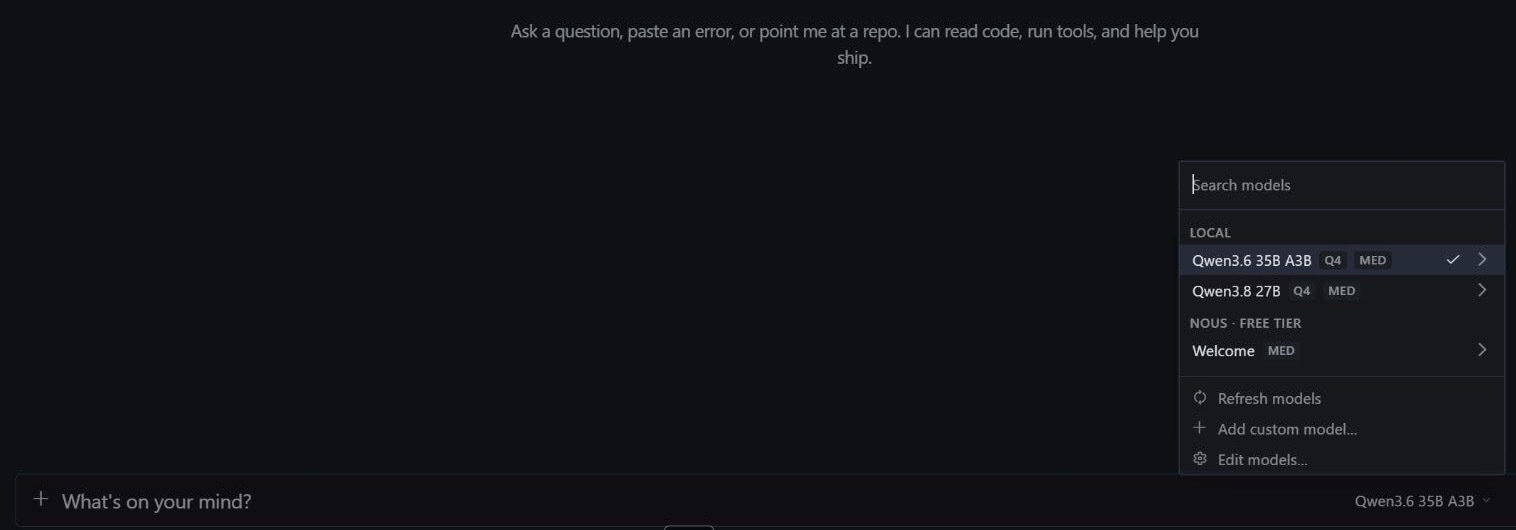
Most agents will auto-select the recommended models. You can choose the model you use in the right side of the prompt box. You can also check our recommended models [here](https://build.nvidia.com/rtx-spark/running-llamacpp).
In Hermes, select Qwen3.8 27B under LOCAL to use a local model.
In some agents you can also select the level of thinking - higher thinking takes more time but yields better results, and vice versa. Start with the default and adjust as needed.
# Step 3. Connect your apps
Agents work best when they have context about your work and can take actions for you. You do this by connecting them to your apps, like email, Slack, creator apps.
There’s 2 ways to do this:
- We recommend just telling your agent which apps you want to connect, and it will guide you through it.
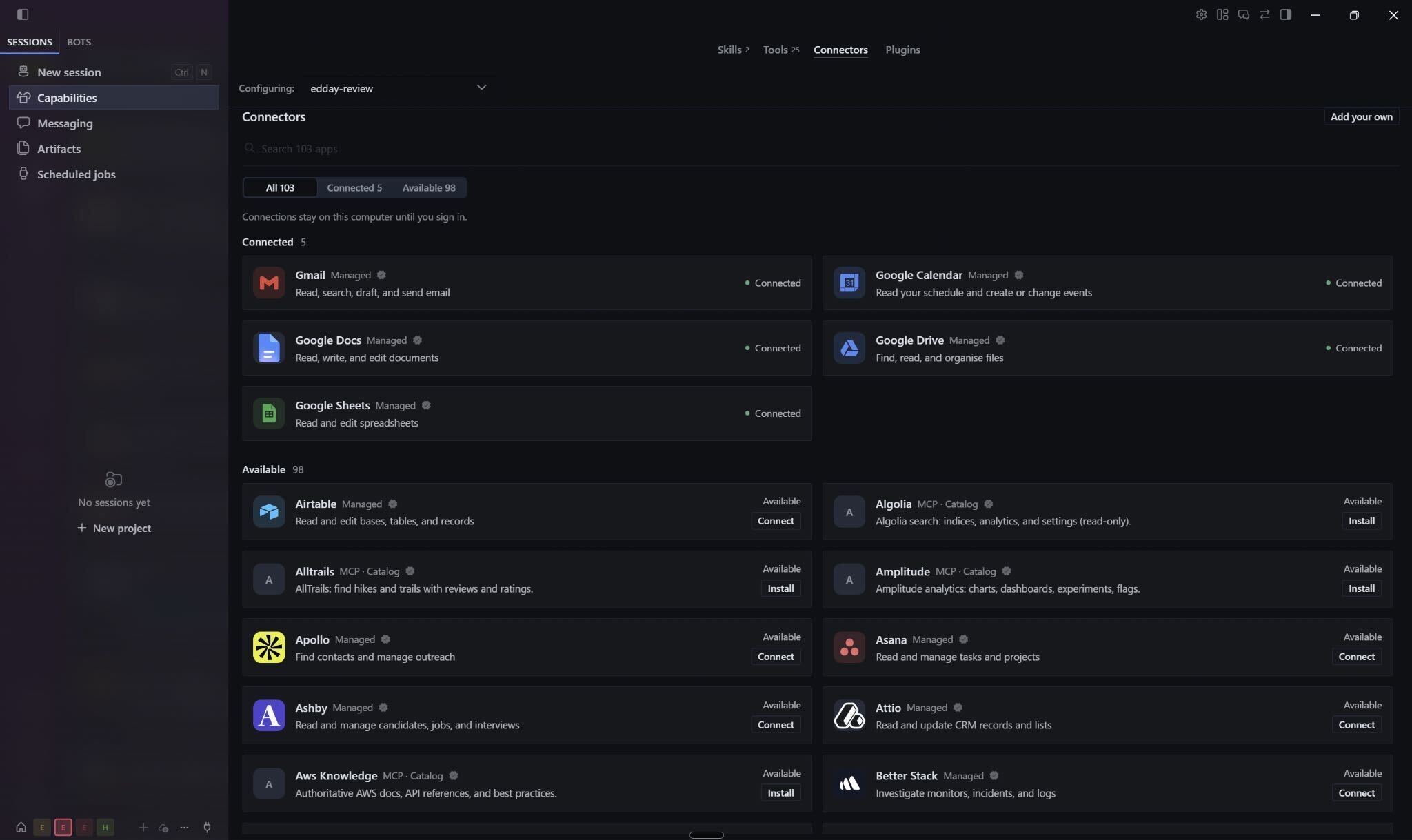
- If you prefer going through a settings UI, in your Agent, open the **Capabilities**/**Plugins** section (each agent calls it differently), and select the apps you want to add.
- Some agents offer you to connect to your app via a Connector or Plugin, or an MCP. Choose **Connector** or **Plugin**. A connector/plugin typically has an easy way to connect to the app. An MCP is just an API and may require additional steps to connect to it.
- In some tools, you can determine the level of access for additional safety. For example, you can start by giving your agent read-only access to your email, so it can’t send emails on your behalf.
# Step 4. Talk to your Agent!
- **Start by sharing who you are**. Indicate your background, what you want the agent to do, your preferred formats, how you want your agent to talk to you, and ask it to remember those details.
Replace the red bracketed text with your details, then copy the prompt into your agent.
Example prompt
```prompt
Hi, I’m [Name]. I want you to be my personal assistant. Give me concise responses. When finding solutions to problems check online for official documentation or popular and validated community sources.
```
Hi, I’m [Name]. I want you to be my personal assistant. Give me concise responses. When finding solutions to problems check online for official documentation or popular and validated community sources.
- Now you can try your first task! We recommend you give your agent a goal, such as giving it the list of apps you want installed on your new RTX Spark, and indicating you want it to install the best version for an RTX Spark laptop.
Example prompt
```prompt
This is a new RTX Spark. Please help me install [Google Chrome, Microsoft Office, Adobe Photoshop, Discord, and Steam]. Prefer the native arm version optimized for RTX Spark.
```
This is a new RTX Spark. Please help me install [Google Chrome, Microsoft Office, Adobe Photoshop, Discord, and Steam]. Prefer the native arm version optimized for RTX Spark.
- If it gets stuck, just ask questions. Your agent can work around the issues.
**You are now ready to start using your agent!**
# Step 5. Optional: Make your agent more helpful
## Memory & Skills - Teach your agent to remember how you like to work
Your agent may not know how you like it to do things from day one. Teach it over time.
- **Give feedback often.** Correct the agent when it gets something wrong, and ask it to remember.
- **Teach it how you like things done with Skills**. Think of a skill as an operating manual that the agent can use to do a workflow. Use a skill when you want a task done in a specific manner. For example, if you want to receive a news update every morning on a specific topic and formatted in a certain way.
You can create skills in 3 ways:
- **Turn a routine into a skill.** Once the agent completes a task that you liked, you can ask it to remember it for the next time so it takes a similar approach. In the same chat, simply say:
Example prompt
```prompt
That was great. Create a skill with this workflow, and call it [skill-name].
```
That was great. Create a skill with this workflow, and call it [skill-name].
- **Create skills from scratch:** Describe how you would like the task approached, then test it. Give it feedback until it gets it right.
Example prompt
```prompt
I want to create a skill to turn my meeting notes into action items. Review this week’s transcripts and find instances where we discussed a task and who had to do it. Remember that later mentions may override prior ones. Add follow-ups to [this tracker] document after every meeting
```
I want to create a skill to turn my meeting notes into action items. Review this week’s transcripts and find instances where we discussed a task and who had to do it. Remember that later mentions may override prior ones. Add follow-ups to [this tracker] document after every meeting
- **Find community-built skills:** Go to your Agent’s Skill Hub or ask your agent to search on your behalf.
Example prompt
```prompt
I need a skill for [creating flashcards to help me memorize ]. Please check the skill hub for a recommended one.
```
I need a skill for [creating flashcards to help me memorize ]. Please check the skill hub for a recommended one.
## Channels - Connect to your agent from anywhere
You can talk to your agent and give it instructions even when you’re not at your PC. Connect your favorite messaging app, like Discord or Telegram through the **Channels** pane in your agent, so you can chat with it from your phone. Remember to keep your PC powered on so your agent stays active.
## Scheduled Tasks - Automate Repetitive Tasks
If you created a skill that you liked, and you would like it done automatically every morning, you can request your agent to create an automation or scheduled task.
Simply describe when you want to kick off the task, and what should be the outcome. Alternatively, you can navigate to the Scheduled Tasks or Cron Jobs section of the UI and create / edit scheduled tasks manually.
Example prompt
```prompt
Create a scheduled task to [generate a daily briefing] using the [daily briefing] skill. Deliver it as a [new chat] [every work day of the week] at [8 am].
```
Create a scheduled task to [generate a daily briefing] using the [daily briefing] skill. Deliver it as a [new chat] [every work day of the week] at [8 am].
## Context window - Use a single chat per Task
Think of the context window as the agent’s working memory. It holds the current conversation, instructions, files, and recent results. That space is limited. When it fills up, the agent may summarize or drop older details to make room.
Keep chats focused: use a new conversation for a new task, share only the files it needs, and ask it to save important details to memory.