
Accelerate AI and productivity with a remote, always available RTX Spark compact desktop
RTX Spark compact desktops are power-efficient PCs, which makes them well suited to staying on around the clock. This playbook shows you how to set up your RTX Spark as an always-on AI hub that you reach from your other devices. It is written for the compact desktop, but the steps apply to any RTX Spark.
The playbook has two parts:
If something does not work, open the Troubleshooting tab.
For the first setup, connect a monitor, keyboard, and mouse to RTX Spark. You can remove them in Step 5.
A PC that is asleep cannot be reached remotely, so turn off sleep and hibernate.
On RTX Spark, open Settings > System > Power.
Expand Screen, sleep & hibernate timeouts.
Set Make my device sleep after and Make my device hibernate after to Never.
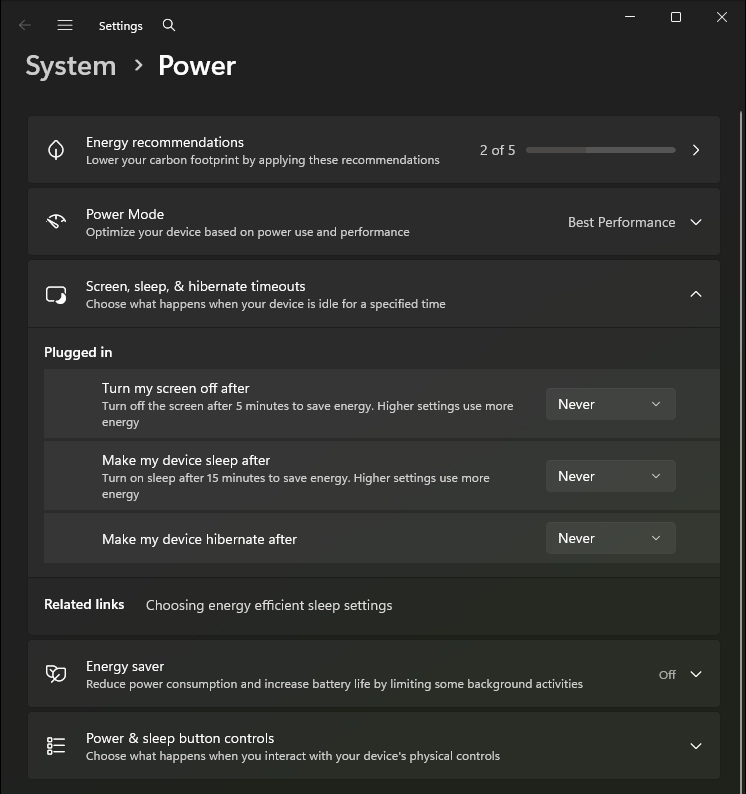
Three more settings are worth a look on an always-on device:
rtx-spark, and restart.Remote desktop lets you control RTX Spark from another PC, as though you were sitting in front of it. Choose one option:
To check your Windows edition, open Settings > System > About.
| Microsoft Remote Desktop | Chrome Remote Desktop | RealVNC Connect | |
|---|---|---|---|
| Windows edition on RTX Spark | Pro, Enterprise, or Education | Home or Pro | Home or Pro |
| Cost | Included with Windows | Free | Free Lite plan for personal use |
| Account | Windows account with a password | Google account | RealVNC account |
| Use away from home | With Tailscale (Step 4) | Yes | Yes |
| Use with no monitor attached | Yes | May need a dummy display plug | May need a dummy display plug |
| Frame rate | 30 FPS, or 60 FPS with a registry setting | 30 FPS | Not published |
All three let you sign in to Windows again after RTX Spark restarts. Follow the section for the option you chose.
On RTX Spark, open Settings > System > Remote Desktop and turn on Remote Desktop.
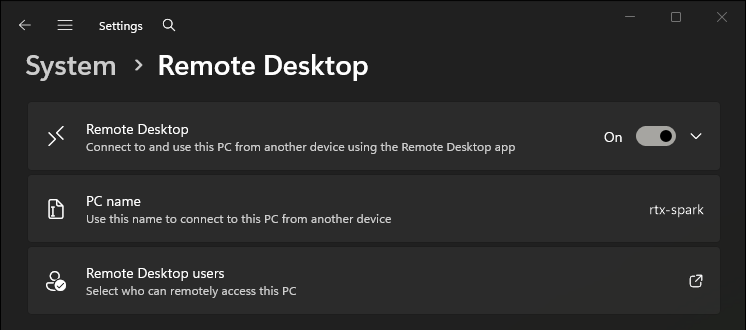
On your other PC, open Remote Desktop Connection, enter RTX Spark’s device name, and select Connect.
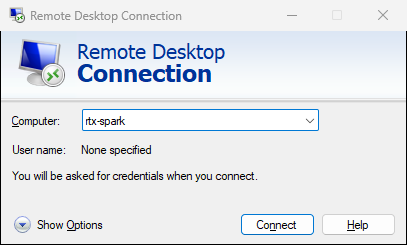
Sign in with your Windows account password. A PIN or other Windows Hello sign-in does not work over Remote Desktop.
For other devices and more detail, see Microsoft’s guide, How to use Remote Desktop.
For more detail, see Google’s guide, Access another computer with Chrome Remote Desktop.
From your other PC, connect to RTX Spark. You should see its Windows desktop and be able to open apps.
Tailscale creates a private network between your own devices, so you can reach RTX Spark from outside your home without opening ports on your router. It is free for personal use.
You need Tailscale to use Microsoft Remote Desktop away from home, or to follow the Tailscale route in the Inference tab. Otherwise, skip to Step 5.
Install Tailscale on RTX Spark and on each device you will connect from. Sign in with the same account on every device.
On RTX Spark, right-click the Tailscale icon in the system tray and select Preferences > Run unattended. Tailscale then stays connected after a restart, before anyone signs in to Windows.
In the Tailscale admin console, open the menu next to RTX Spark and select Disable key expiry. Otherwise, RTX Spark leaves your Tailscale network after 180 days until you sign in again.
On another device, run tailscale status to find RTX Spark’s Tailscale name, then check that you can reach it:
tailscale ping rtx-spark
You can now use RTX Spark’s Tailscale name wherever this playbook asks for its address, at home or away. To limit which users and devices can connect, see Tailscale access controls.
With remote desktop working, RTX Spark no longer needs its own monitor, keyboard, and mouse. You can also leave them connected and use RTX Spark at a desk.
NOTE
Chrome Remote Desktop and RealVNC show RTX Spark’s own display. If the screen is black or low resolution once the monitor is unplugged, connect a dummy display plug to RTX Spark or leave a monitor connected. A dummy display plug is a small adapter that you buy separately, often sold as an HDMI dummy plug or a headless display adapter. Choose one that fits a display output on your RTX Spark. Once it is plugged in, Windows acts as though a monitor is connected. Microsoft Remote Desktop creates its own display, so it is not affected.
Remote access is ready. Now choose what RTX Spark will do, and open the matching tab.
| Tab | Agent runs on | Model runs on | Choose it if |
|---|---|---|---|
| Agents | RTX Spark | RTX Spark | You want one always-on agent that you reach from your phone or any PC. |
| Inference | Your laptop | RTX Spark | You want to keep your agent on your laptop, close to your files, and use RTX Spark to power the model. |
| Creators | No agent needed | RTX Spark, in ComfyUI | You want to generate images and video from any PC in your home. |
Agents can be lightweight, but running AI models can use a lot of computational power. RTX Spark is perfectly suited for running AI models optimally. Follow the Agents tab or the Inference tab based on where you want your agent or model to run. The diagram below shows the different approaches available to you.
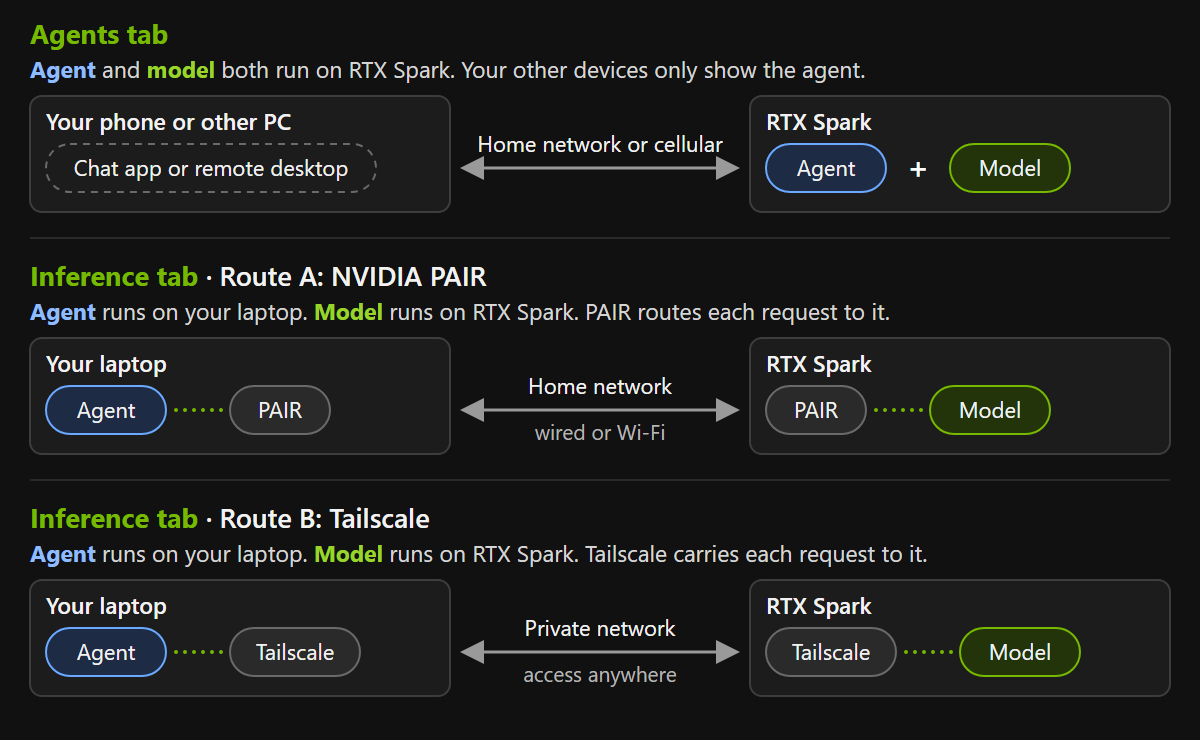
You can set up more than one use case. Models from different use cases share RTX Spark’s memory, so check that they fit together before you run them at the same time.