
Accelerate AI and productivity with a remote, always available RTX Spark compact desktop
ComfyUI runs generative AI models for images and video. With ComfyUI on RTX Spark, you build and run workflows from any PC in your home while RTX Spark runs the models.
Before you start: complete the Remote Access tab.
On RTX Spark, follow Steps 1 and 2 of How to Use Creative AI Models Locally in the Create with an AI Agent playbook, then return here:
You do not need Step 3 of that tab for this setup.
By default, ComfyUI accepts connections only from RTX Spark itself.
In Comfy Desktop on RTX Spark, go to the home screen that lists your instances. On the ComfyUI card, highlighted in the image below, select ⋮, then Manage.
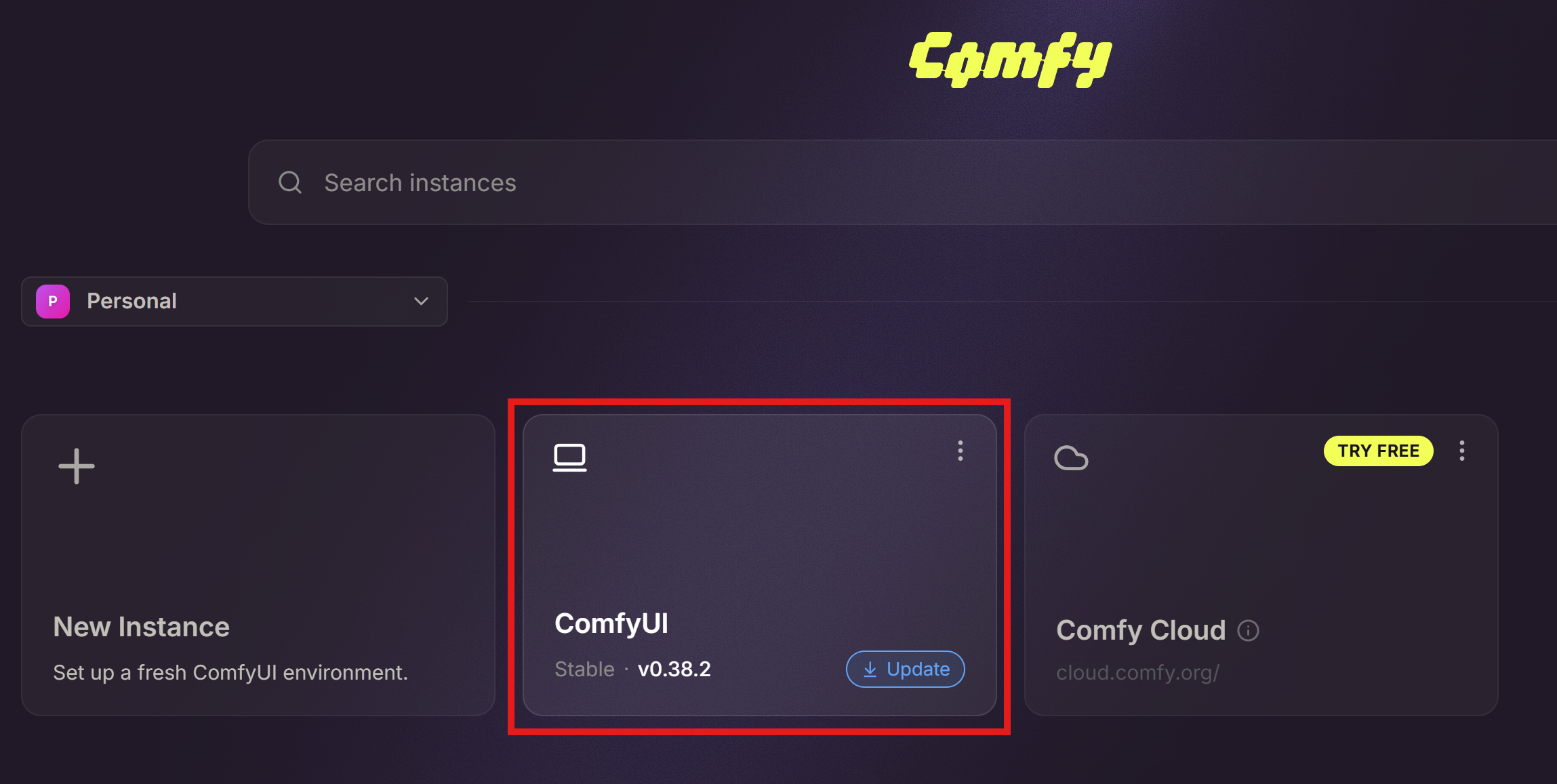
On the Startup Args tab, add --listen to Startup Arguments, then start the instance again.
If Windows Firewall asks, allow ComfyUI on private networks.
ComfyUI is now available to your other devices at http://<rtx-spark-address>:8188. In place of <rtx-spark-address>, use RTX Spark’s device name. To connect away from home, use its Tailscale name (Remote Access tab, Step 4).
NOTE
ComfyUI has no sign-in of its own, so anyone who can reach the address can use it. Keep it on your home network or behind Tailscale. Do not forward the port on your router.
Use any of these:
http://<rtx-spark-address>:8188. You get the full ComfyUI interface, and your workflows run on RTX Spark.8188.COMFYUI_URL set to http://<rtx-spark-address>:8188.http://<rtx-spark-address>:8188 in a browser.Comfy Desktop does not run in the background. After RTX Spark restarts, sign in through remote desktop and open Comfy Desktop again.